AI Music Video Generator

Make visualizers, lyric videos, and photo videos from your music.

My Videos

Choose a Video Type to Create

Music Visualizer

Show waves and shapes that move with your music.

Lyric Video

Show your lyrics in time with the music.

Photo Music Video

Turn photos and artwork into a video with your music.

Music Video Showcase

18 video examples

Why Choose CocoMusic AI Music Video Generator

Three available formats, your own soundtrack, and editable projects give your music a visual form you can keep shaping.

  • Three Available Video Formats

    Music Visualizer, Lyric Video, and Photo Music Video are available. Those three formats turn a soundtrack into moving audio graphics, readable lyrics, or a presentation built around your photos.

  • Your Existing Music

    Your uploaded audio or an available song from your library can remain the soundtrack. The video work focuses on its visuals and presentation, without requiring a new song.

  • Five Canvas Ratios

    The editor offers 16:9, 9:16, 1:1, 4:3, and 3:4 canvases. Those five shapes give the same music a practical layout for wide, vertical, or square presentation.

  • Saved Projects Stay Editable

    Saved projects keep their source media and settings in your private account. They can be reopened for more editing, so a finished export does not have to end the project.

Turn Your Song into a Video You Can Shape

Bring your audio, choose the visual format, and use the relevant editing controls to finish a music video around the track.

Turn Your Audio into a Music Visualizer

An audio visualizer gives an existing song a moving visual form without changing the soundtrack. Choose a template, then adjust the sound wave style, color, size, and sensitivity in the supported editor. Upload your track and review how the shapes respond to the audio. This format suits an instrumental, a full song, or a simple listening video when the music should remain the focus.

Choose a Video Type
A music creator shaping moving sound waves around an existing soundtrack

Create a Lyric Video with Editable Timing

Put the words on screen while the song plays, with lyric text and timing you can revise. Import LRC or TXT, paste lyrics, or use the available automatic lyric workflow for audio up to 10 minutes. Timed LRC keeps its cues; plain text starts with evenly spaced lines. The editor lets you adjust timing and presentation, so you can check the words against the soundtrack.

Choose a Video Type
A creator arranging readable lyric lines beside the timing of a song

Build a Photo Music Video Around Your Images

Photo Music Video combines your images with an existing song. Photos can be distributed across the soundtrack automatically, then reordered or given individual display times in the timeline. Local motion includes Slow Zoom, Pan Across, Pan Up & Down, and Still Image, with adjustments for each photo. Preview the sequence and its transitions as one composition, developing the visual rhythm around the pictures you chose.

Choose a Video Type
A creator arranging personal photos and local motion along a music timeline

Set the Aspect Ratio, Resolution, and Frame Rate

Set the video’s shape and output settings for the version you want to share. Supported local compositions offer five aspect ratios: 16:9, 9:16, 1:1, 4:3, and 3:4. The export controls include 720p or 1080p resolution and 24, 30, or 60 fps. Check the preview after changing the canvas, since a wide composition and a vertical version give text and images different space.

Choose a Video Type
A video creator composing wide, vertical, and square canvases for the same music

Preview the Video and Shape Its Text Style

Preview brings the music, images, and text together before you commit to an export. Adjust the title, artist name, and supported lyric or caption styles to fit the composition. Text placement, size, and visual treatment can be reviewed on the actual canvas. Watching the result with your soundtrack makes it easier to notice crowded lines, an obscured image, or a style that needs another pass.

Choose a Video Type
A creator reviewing a music video composition and refining its text layout

Save and Export Your Video

Choose Save to keep the project, source media, and settings in your account for later editing. Exporting a new Music Visualizer, Lyric Video, or Photo Music Video costs 20 credits. The browser produces MP4 where supported, with WebM as the fallback. Downloading an already completed account video adds no extra credits. Optional AI operations have their own displayed costs. Review the finished video before sharing it.

Choose a Video Type
A music creator saving an editable project and reviewing a completed video export

How to Make a Music Video with CocoMusic

Choose a format, bring your song, and review the composition before saving or exporting.

  1. Choose Your Video Format

    Choose one of the three available formats and sign in to open its workspace. Story and Performance use their waitlists or separately granted access.

  2. Add Your Music and Visual Material

    Upload audio or pick an available song from your library. Add your photos or lyrics where the chosen format uses them.

  3. Adjust and Preview the Composition

    Set the canvas, change the relevant text, wave, or photo controls, and play the preview with the soundtrack. Check timing and framing before finishing.

  4. Save and Export Your Video

    Choose Save to keep the project in your account. Review the displayed export cost before exporting the finished composition. Check the downloaded video before sharing it.

A creator moving from a soundtrack and visual format to a previewed video

Compare CocoMusic with Other AI Music Video Generators

Starting inputs, visual controls, and export conditions shape the music video workflow.

Comparison CriteriaCocoMusicSolmiNeural FramesOpenArtBeatVizMusVideo
Your Existing SongUpload / your libraryMP3 / WAV / M4AMP3 / WAV / FLACUpload your own trackUpload your own trackMP3 / WAV / M4A / AAC
Video FormatsVisualizer / lyric / photoLyric, story, dance, visualizerAudio-reactive generated visualsMusic video; visualizerGenerated music-video scenesCinematic; lyric-forward videos
Visual DirectionTemplates / photos / lyric stylesStyles; optional singer photosPrompts; character and style controlChat; reference character imageChat; style and model choicesStyle; storyboard review
Aspect Ratios16:9 / 9:16 / 1:1 / 4:3 / 3:416:9 / 9:16Horizontal / vertical / customWide and vertical cuts16:9 / 9:16 / 1:1Project aspect-ratio choice
Editing ControlsPreview / text / photo timelineShot edits; lyric captionsFrame-by-frame; timelineChat; Scenes and TimelineTimeline; scene-by-scene editsReview and refine scenes
Free AccessFree plan: 30 credits / UTC monthOne 20-sec watermarked previewFree previews and editorFree start advertisedFree start advertised50 credits: planning and images
Video Export720p / 1080p; new export: 20 credits720p / 1080p: plan or pack4K: Ninja / Nirvana plansFinished-video export1080p: paid plansDownload; plan-based quality

FAQs

Answers about the available formats, your files, editing, saving, and the cost of finishing a video.

What types of music video can I create now?

Music Visualizer, Lyric Video, and Photo Music Video are available. Story and Performance Music Video are Coming Soon for users without an individual access grant; you can join their waitlists. Sign In is required to open a creation workspace.

Can I use a song I already have?

Yes, if you have the necessary rights to the recording. Upload an audio file or choose an available song from your library. The selected recording remains the soundtrack while you work on its visuals. You also need rights to any lyrics, images, or other material you add.

How long can the audio be?

Music Visualizer and Lyric Video support audio from 1 second to 30 minutes. New Photo Music Video compositions support 1 second to 10 minutes. The audio file limit is 100 MB. Automatic lyrics support recordings up to 10 minutes; manually timed captions can cover each format’s supported duration.

How do lyrics stay in time with the song?

LRC imports keep their timestamps, while plain text starts with evenly spaced lines that you can retime. Automatic lyrics are available for recordings up to 10 minutes. You can edit the words and cue timing, then check the result in preview. Review synchronization before export; timing is not guaranteed to be perfect.

Which file formats does the tool support?

Audio inputs include MP3, WAV, M4A, AAC, OGG, FLAC, and WMA; the browser must be able to decode the actual file. Photos use JPG, PNG, or WebP, and lyric files can be LRC or TXT. Photo Music Video allows up to 30 images, each up to 10 MB. Exports use MP4 when supported by your browser, with WebM as the fallback.

Which aspect ratios, resolutions, and frame rates can I choose?

Supported local compositions offer five ratios: 16:9, 9:16, 1:1, 4:3, and 3:4. Resolution choices are 720p or 1080p, with 24, 30, or 60 fps frame rates. Recheck your framing and text after switching the canvas.

How many credits does exporting a video cost?

Exporting a new Music Visualizer, Lyric Video, or Photo Music Video costs 20 credits. Exporting an eligible video again with a verified original paid generation costs 0 additional export credits. Optional AI requests have separate displayed costs, so review the current quote for any extra operation you choose.

Does downloading a completed video cost more?

No. Downloading a completed account video adds 0 credits and does not require a current paid plan or unused purchased pack balance. You still need access to the account and completed video. A new export has its own export charge, so downloading a finished file and creating another export are separate actions.

Can I save a project and edit it later?

Yes. Choose Save to store the project and its media in your private account, then reopen it from My Videos for more editing. Ordinary edits need an explicit Save; temporary browser recovery is not the same as a confirmed account save. A completed export does not prevent later project editing.

Can I use the music video commercially?

Yes, when your account has the required commercial access and you hold the necessary rights to the soundtrack and visuals. Current commercial access requires an active paid plan or valid unused purchased pack credits. A song generated with CocoMusic also needs its valid saved commercial license. Download permission does not grant copyright ownership, exclusivity, or rights to other people’s material.

Music Video Privacy and Data Handling

How CocoMusic handles saved projects, creative inputs, processing, and project removal.

  • Saved Video Projects Are Private

    Saved projects and their media are tied to your account. Access to a saved project and its media is checked against the account owner.

  • CocoMusic Does Not Train on Your Content

    CocoMusic’s policy covers your prompts, files, and creations. Account storage and the processing needed for your requests are separate from using that content to train AI.

  • AI Requests Send Required Inputs for Processing

    An enabled AI service receives the description, lyrics, or media required for that request. Saving a project also stores its source media in your account.

  • Saved Video Projects Can Be Deleted

    Delete Project removes access to the selected saved project after confirmation. Stored media copies, backups, and service records are not promised to disappear immediately.

Turn Your Music into a Video

Give your song a visual form with moving waves, timed lyrics, or your own photos. Choose a format, then shape and preview the video before export.

Choose a Video TypePreview Before Export
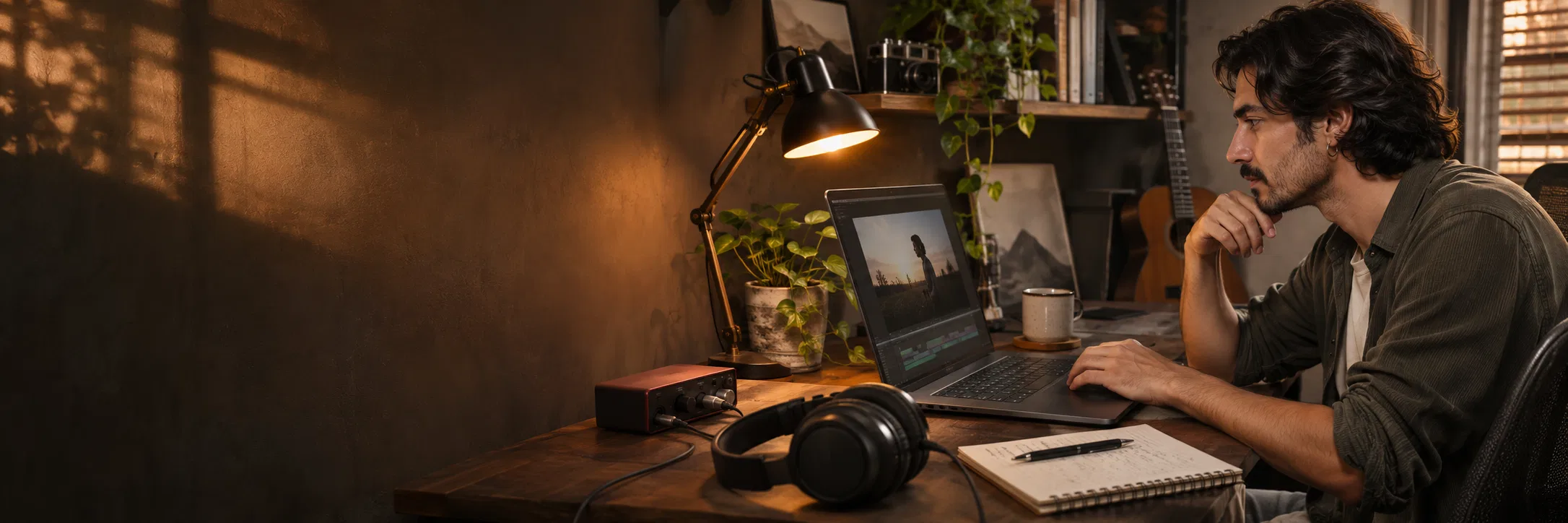
A music creator on the right facing a screen and creative workspace to the left