Vocals + Backing Track
2 TracksSource Tracks
Up to 10 tracks, 10 minutes per file and 20 minutes per mix.
Mix audio tracks and export one finished file.
Loading mixes…
Vocals + Backing Track
2 TracksSource Tracks
Four-Track Balance
4 TracksSource Tracks
Staggered Entrances
3 TracksSource Tracks
Bring separate recordings together with control over what plays, when it enters and how the layers sound together.
Up to 10 audio tracks can play together in one mix. Each has its own level and timing, giving vocals, backing music and instrument stems room in the same arrangement.
Waveform clips have editable start positions, trims and fades. A voice can enter after an intro, a drum part can start later, and an ending can fade out gradually.
Individual playback and Play Mix offer two ways to check an arrangement. A quiet vocal, a late entrance or an unwanted layer can be heard before making the finished file.
The arrangement becomes one downloadable audio file. Your chosen layers, timing and volume settings travel together, ready for a video soundtrack, a voice recording or a song demo.
Mixing and exporting require no account or credits. The browser provides the editor and audio processing, so there is no desktop music application to install before working on your files.
A confirmed browser save keeps the editable arrangement separate from finished mixes. That leaves the project available for later changes in this browser, while earlier completed versions stay intact.
Combine voice, music or instrument recordings, check the arrangement and make one finished audio file.
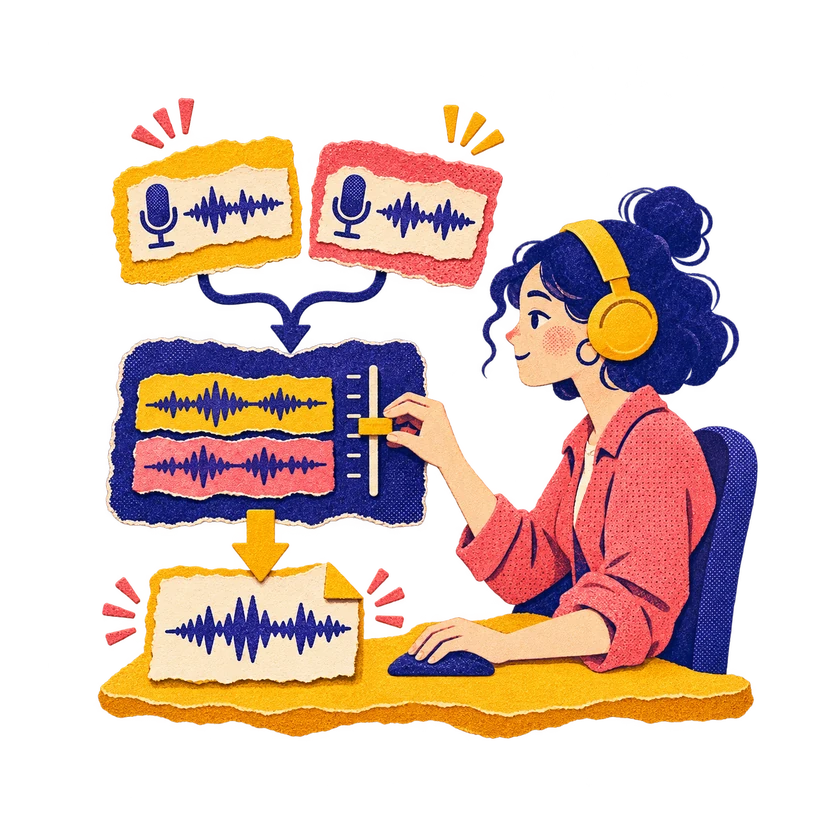
A voice recording and a backing track can become one audio file, with both parts playing together. Separate tracks keep their own entry points and levels, so a spoken intro can sit above background music or a vocal can join an instrumental. Existing instrument stems can also form an arrangement. This mixer combines the recordings you bring; it does not create the source parts.
Start Mixing
Each track has a volume control, Mute and Solo. This makes it possible to lower backing music around a voice or compare an instrument with the rest of the arrangement. Individual playback helps check the source on its own. Mute and Solo also affect which tracks enter the exported mix, so the finished version follows the group you chose to hear.
Start Mixing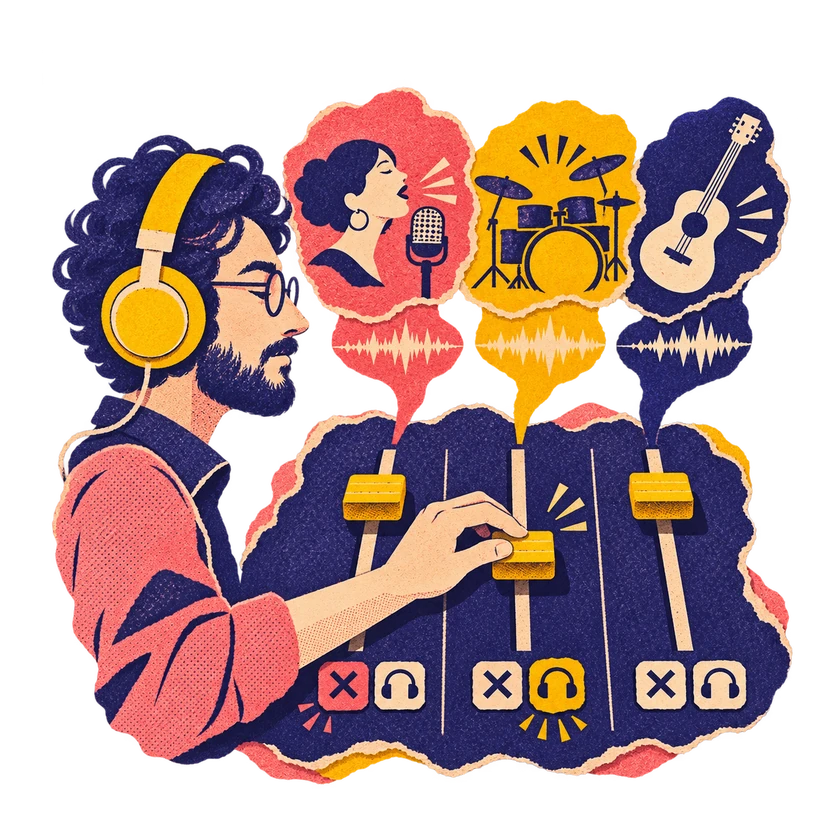
Clips can move along the timeline, with their edges trimmed to the section you want. Fade controls shape how each layer enters and leaves. Zoom and snapping help with placement, while Advanced Settings provide exact times. These controls support a vocal entering after an intro, a shorter music bed under speech, or a cue aligned with another recording before the tracks are mixed.
Start Mixing
Auto Length follows the full arrangement, while Mix Ends at sets a chosen ending for the project. A shorter ending leaves later audio out; a longer ending keeps silence after the last clip. This gives a soundtrack or spoken cue a deliberate finish. Individual clip trims and fades remain available for shaping what happens inside that overall duration.
Start Mixing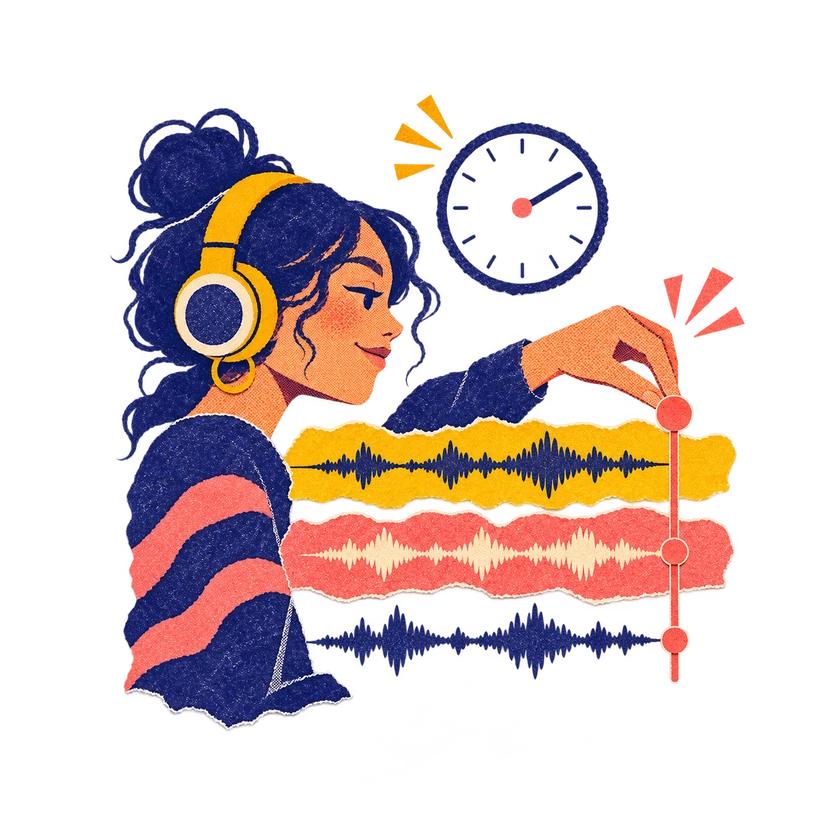
WAV, MP3 and FLAC are available for the finished mix. MP3 suits a smaller listening copy, while WAV and FLAC keep the rendered audio in lossless formats for further work. The source recording still sets the available detail; changing its output format does not restore information already lost. Each export brings the chosen tracks together in one stereo file.
Start Mixing
The editable project and completed exports have different roles in this browser. Project saving retains source files and editing settings for another session, while My Mixes holds the finished versions. Further edits do not rewrite an earlier completed mix. Browser storage can be cleared or become unavailable, so downloading important versions gives you a separate copy to keep.
Start Mixing
Start with separate recordings, arrange the layers and download the version you want to keep.
Add at least two recordings using the track audio controls. Keep a voice, backing track or instrument part on its own track.
Set each track volume, move clips to their entry times, and trim or fade their edges. Use Advanced Settings when you need exact values.
Use Play Mix to hear the layers together, or play a track on its own. Check the beginning, balance and ending before exporting.
Choose Export Format, then select Mix Tracks. Download the completed file from My Mixes and keep a separate copy of important versions.
Compare the editing approach, listening controls and output choices for the recordings you want to combine.
| Comparison Criteria | CocoMusic | GuitarToolHub | Soundtrap | AudioNodes | Audacity | Clideo |
|---|---|---|---|---|---|---|
| Workspace | Browser | Browser | Online studio | Browser | Windows, macOS, Linux | Browser |
| Main Workflow | Layer recordings | Layer tracks together | Record, mix, collaborate | Modular audio and timeline | Record and edit audio | Join files in sequence |
| Audio Sources | Up to 10 tracks | Up to 6 tracks | Not stated on this page | Unlimited tracks | Not stated on this page | Two or more files |
| Timing and Editing | Trim, offsets, fades | Waveform and start offsets | Automation on paid plans | Cut, slice, loop, arrange | Not stated on this page | Reorder and crossfade |
| Balance and Effects | Volume, Mute, Solo | Volume, pan, EQ, reverb | EQ, compressor, reverb | Gain and effect nodes | Third party effects plugins | Crossfade between songs |
| Export Formats | WAV, MP3, FLAC | MP3, WAV | Not stated on this page | WAV, MP3 | WAV, MP3, FLAC, Ogg | MP3, WAV, M4A |
Answers about mixing tracks, supported files, export settings and returning to your local project.
An online audio mixer combines separate recordings into one audio file. CocoMusic lets you set their timing and volume, preview the arrangement and export the result.
Yes. Mixing, previewing and exporting need no account or credits. The audio processing takes place in your browser.
You can mix up to 10 tracks. Exporting requires at least two loaded recordings. Each track keeps its own volume, entry time, trims and fades.
Each file can be up to 300 MB and 10 minutes long. The complete mix can be up to 20 minutes. Use mono or stereo audio that your browser can read; MP3 and WAV are good starting choices. Other formats depend on browser and codec support.
Yes. Add the voice and music on separate tracks, set their entry times and balance their volume. The mixer does not automatically lower music during speech, so you control that balance yourself.
Yes. Each track can play on its own, and Solo limits the mix to soloed, unmuted tracks. Individual track playback can still audition a source excluded from the mix. Preview keeps extra volume headroom, so its loudness can differ from the export.
WAV, MP3 and FLAC are available. All exports are stereo at 44.1 kHz. MP3 uses 192 kbps; WAV and FLAC use 16 bit audio. A lossless output does not recover detail already missing from the source.
Your project can reopen in this browser after Project Saved in This Browser confirms the save. My Mixes keeps completed exports separately. Clearing site data or changing the browser, device or site address can remove or hide local work, so download important mixes.
No. Timing and balance are manual, and the mixer layers the recordings you provide. It does not match tempo or key, separate vocals, or generate a new performance. Related CocoMusic tools handle separate tasks.
The export reduces the whole mix when its sample peak exceeds −1 dBFS. Quieter mixes are not boosted, and the balance between tracks is preserved. This controls sample peaks; it is not loudness mastering or a true peak guarantee.
Know where audio is processed and what happens to the copies you keep.
Reading, previewing, mixing and encoding happen in your browser without uploading recordings for this mixing workflow. The browser can download encoder assets when needed.
The editable draft and its source audio use local browser storage. They do not sync to a cloud library, and clearing site data can remove that copy.
Completed local mixes stay in their guest or account scope in this browser. Signing in does not transfer guest history, and another device does not retrieve these mixes.
Remove deletes the chosen completed mix and its audio from local history. Downloaded files remain separate, so you can keep a copy outside the browser.
Bring your recordings together, hear the balance and download the finished mix.